0Ce qu'on va faire, et pourquoi ça compte
Un colibri doit apprendre à voler jusqu'aux fleurs et à y plonger son bec pour boire le nectar. Personne ne lui écrit la trajectoire : on lui donne des observations (où est la fleur la plus proche, comment il est orienté), des actions possibles (pousser dans une direction, tourner) et des récompenses (un peu de nectar, c'est bien ; cogner la limite de l'île, c'est mal). L'algorithme PPO de ML-Agents fait le reste en quelques millions de pas : c'est l'apprentissage par renforcement, et le résultat se voit dans une scène 3D (démo du résultat).
Ce guide suit la formation ML-Agents Hummingbirds d'Unity Learn (2020, Unity 2019.3) : il reprend ses étapes dans l'ordre, avec le code porté sur Unity 6000.3 LTS et ML-Agents Release 23 (paquet 4.0.3, Python 1.1.0). Les endroits qui ont changé depuis la formation portent la pastille 2026. Les vidéos restent une bonne façon d'entendre les explications, mais rien dans ce guide n'exige de les regarder.
Deux défis avant de coder (prenez une feuille)
La formation d'origine commence par deux questions, et c'est la meilleure façon d'entrer dans le sujet. Écrivez vos réponses avant de lire la section 6 ; vous les comparerez ensuite à celles du cours, et rien ne vous empêchera, le labo fini, de tester les vôtres.
- Les observations. Sans caméra (trop lourd à entraîner), que donneriez-vous au colibri pour qu'il trouve une fleur et y plonge le bec ? Des positions ? Des rotations ? Des vitesses ? Des rayons (une ligne lancée depuis l'oiseau qui dit ce qu'elle touche) ? Combien de nombres au total ?
- Les récompenses. Quand faut-il récompenser l'oiseau, de combien, et quand faut-il le punir ? Une récompense trop généreuse apprend des comportements bêtes ; une punition trop forte apprend à ne plus bouger.
Les trois scripts, dans l'ordre
Flower.cs: sait si elle a du nectar, en donne, se réinitialise.FlowerArea.cs: retrouve toutes ses fleurs, les réinitialise, répond « quelle fleur appartient à ce collider ? ».HummingbirdAgent.cs: observe, agit, reçoit ses récompenses.
Ce que vous remettez
Les trois fichiers .cs versionnés en plusieurs commits (entre 2 et 5 par script), le cerveau
entraîné Hummingbird.onnx, et des captures d'écran de vos courbes TensorBoard : voir la
section Remise.
1Installer les outils 2026
Unity 6000.3 LTS
- Installer Unity Hub et créer un compte Unity (licence Personal, gratuite).
- Dans le Hub, onglet Installs > Install Editor : prendre la ligne marquée LTS, soit Unity 6.3 LTS (6000.3.x), et non la ligne marquée « Recommended » (Unity 6.6, 6000.6.x) : le Hub recommande maintenant une version plus récente, mais ce guide, le code et l'entraînement ont été vérifiés avec 6000.3. Aucun module supplémentaire n'est nécessaire pour ce labo.
Python 3.10.12 et ML-Agents
ML-Agents Release 23 exige Python 3.10 (de 3.10.1 à 3.10.12) : ni 3.11, ni 3.12.
Installer cette version depuis python.org
(Windows : cocher « Add python.exe to PATH »), puis créer un environnement virtuel dédié et y installer
mlagents.
# Windows (PowerShell) : remplacer python3.10 par py -3.10
python3.10 -m venv venv-colibri
# Linux / macOS
source venv-colibri/bin/activate
# Windows
venv-colibri\Scripts\activate

# torch en version processeur (aucune carte graphique nécessaire : l'entraînement du colibri tient sur un CPU)
pip install "torch~=2.2.1" --index-url https://download.pytorch.org/whl/cpu
pip install "mlagents==1.1.0" "setuptools<81"

# vérification : l'aide doit s'afficher
mlagents-learn --help
Piège : setuptools 81 et plus a retiré le module pkg_resources
dont mlagents 1.1.0 a encore besoin. Sans "setuptools<81",
mlagents-learn s'arrête sur ModuleNotFoundError: No module named 'pkg_resources'.
Attendu : mlagents-learn --help affiche
usage: mlagents-learn [-h] [--env ENV_PATH] .... Gardez ce terminal : c'est de lui qu'on lancera l'entraînement.
2Créer le projet et importer la scène
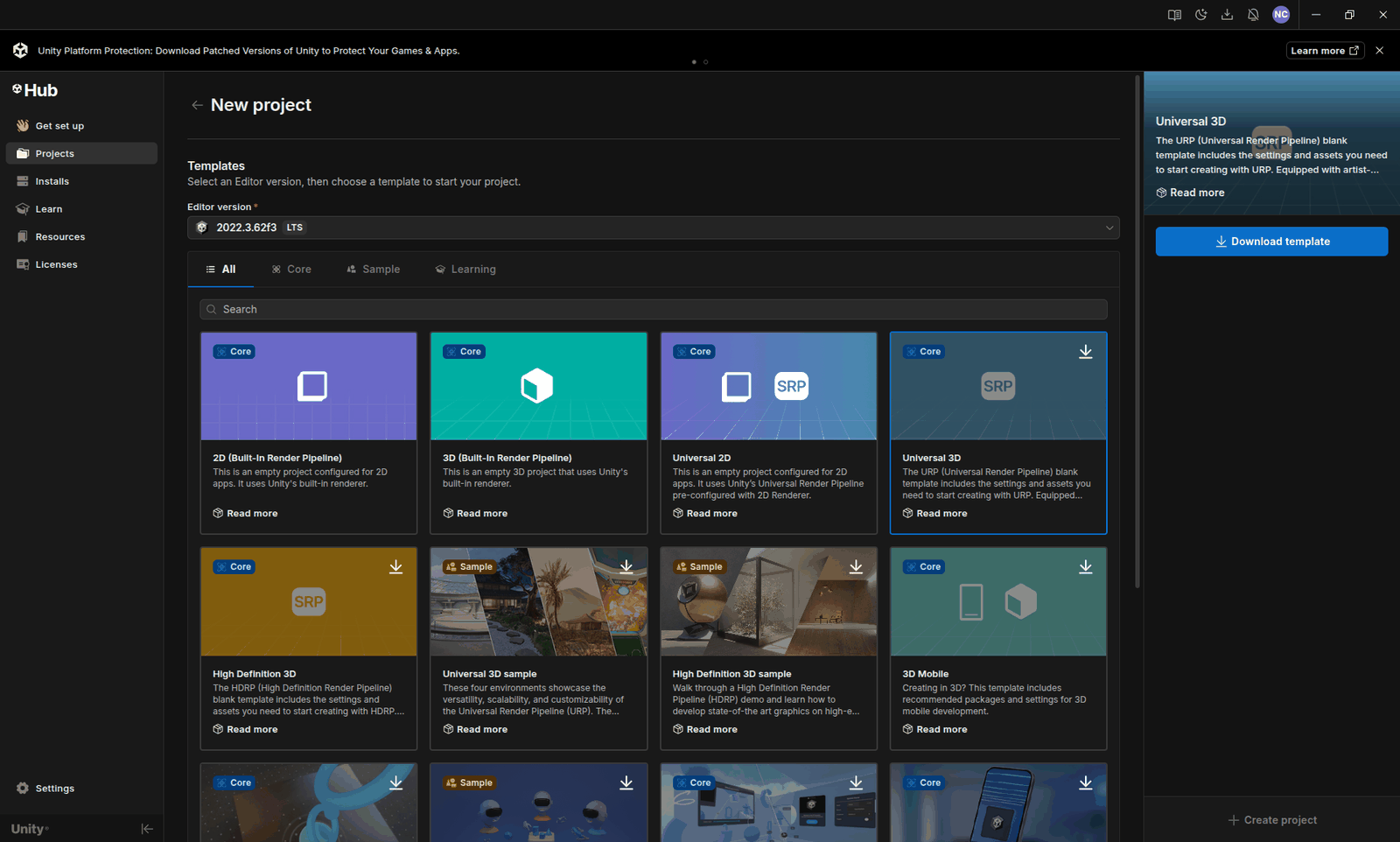
- Dans le Hub, New project, modèle Universal 3D (URP), nom
Hummingbirds. Les matériaux de la scène sont déjà des matériaux URP : aucune conversion.
- Télécharger HummingbirdScene_1.0.zip
(copie de secours : sur ce site), le dézipper : il contient
HummingbirdScene_1.0.unitypackage. - Dans Unity : Assets > Import Package > Custom Package..., choisir le
.unitypackage, Import (tout coché). Le dossierAssets/Hummingbirdapparaît : Materials, Meshes, Prefabs, Scenes, Textures.
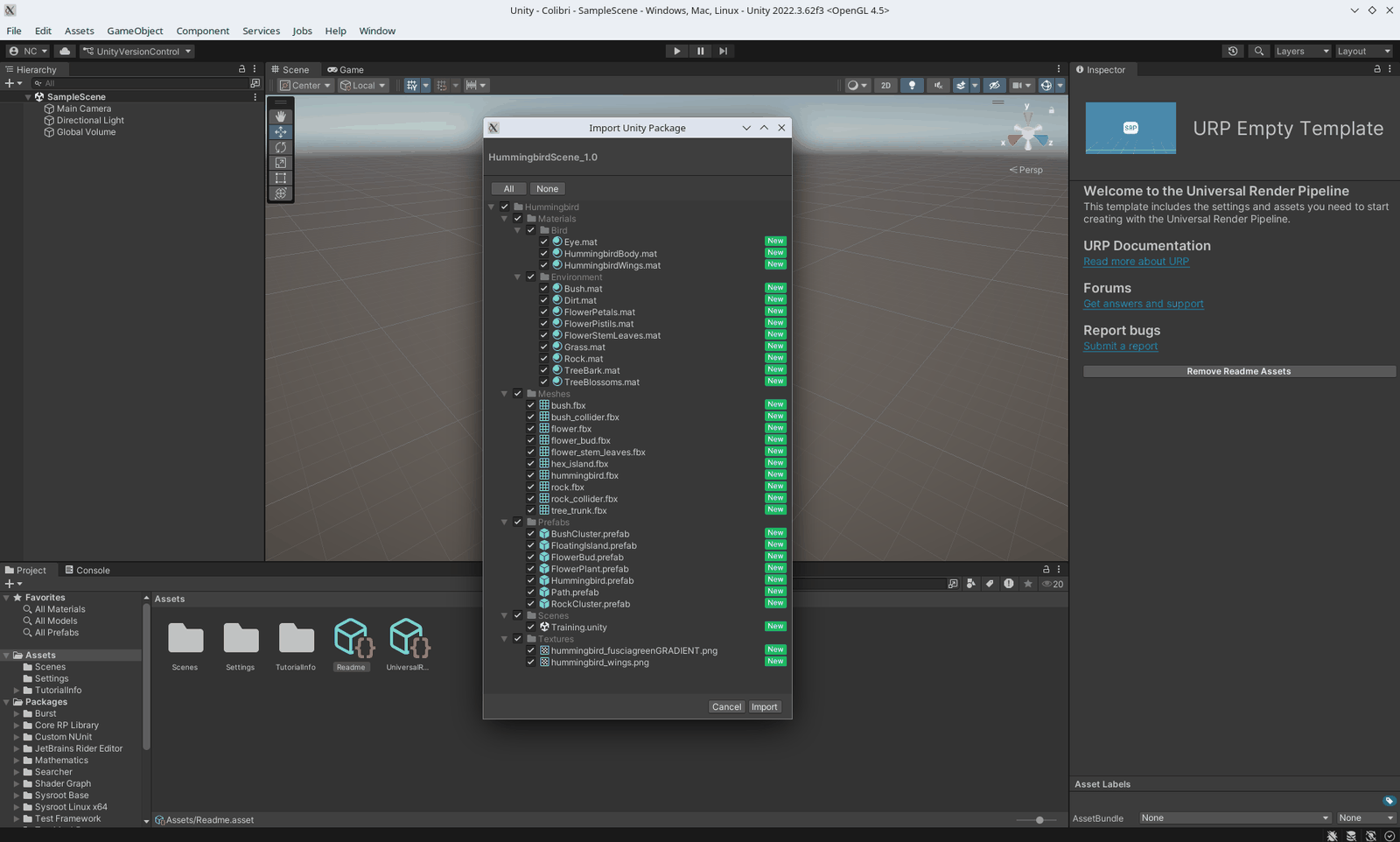
- Faire le ménage du modèle : supprimer
Assets/TutorialInfo,Assets/ExampleAssets,Assets/ScenesetAssets/Readme(clic droit > Delete). Ils ne servent pas au labo. - Ouvrir la scène
Assets/Hummingbird/Scenes/Training(double-clic).
Deux réglages du projet
| Où | Quoi | Pourquoi |
|---|---|---|
| Edit > Project Settings > Physics > Default Contact Offset | 0.001 |
L'oiseau est minuscule : avec le décalage par défaut (1 cm), son bec « touche » le nectar bien avant d'y être. |
| Main Camera (dans la scène) > Clipping Planes > Near | 0.02 |
Pour voir les fleurs de près sans qu'elles disparaissent. |
La formation faisait aussi générer l'éclairage (Window > Rendering > Lighting > Generate
Lighting) avec le matériau Skybox_Mat en ciel : c'est esthétique, pas nécessaire à l'entraînement.
Si la scène est sombre, faites-le.
3Installer le paquet ML-Agents dans Unity 2026
- Window > Package Manager, menu déroulant en haut à gauche : Unity Registry.
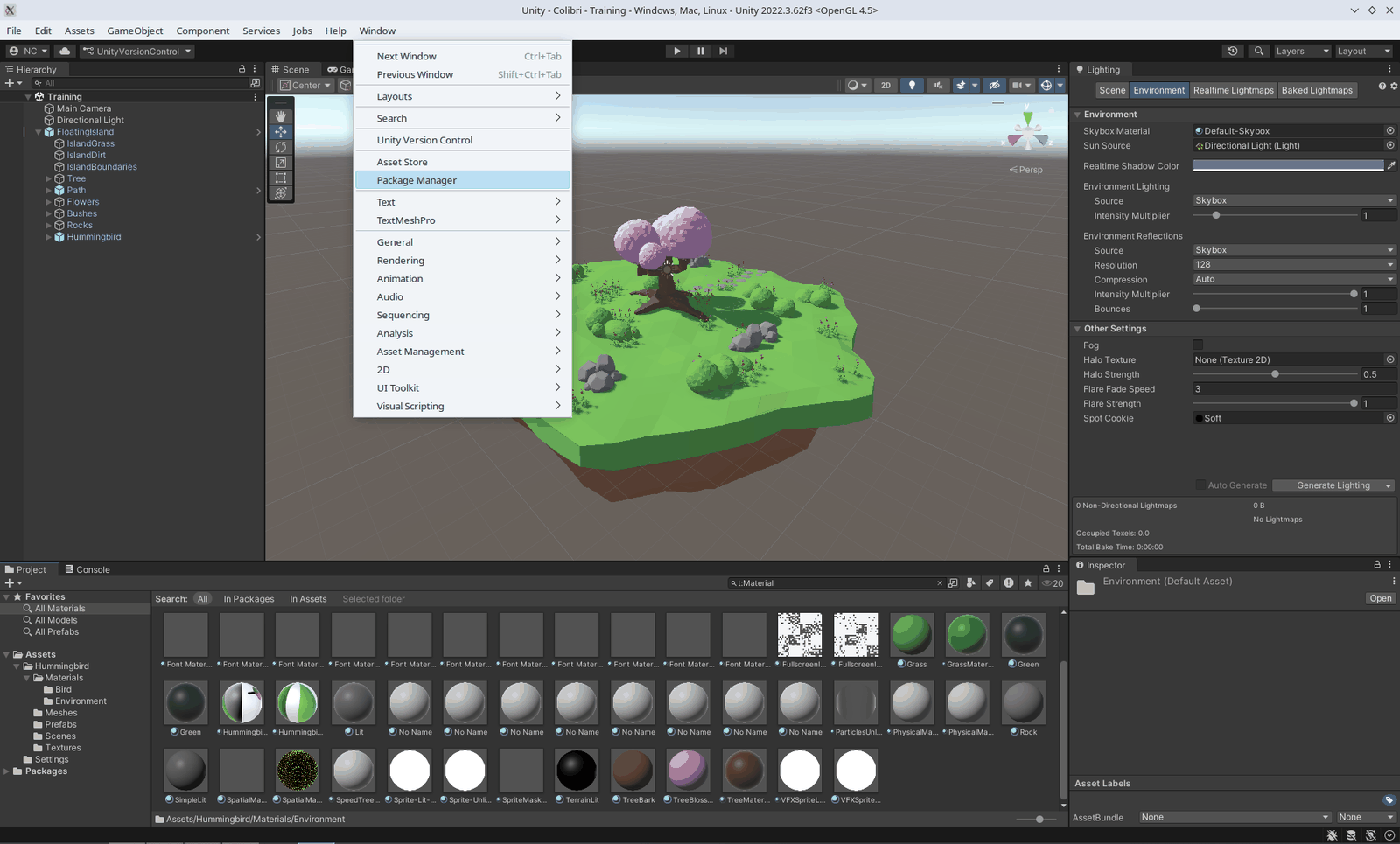
- Chercher ML Agents, choisir la version 4.0.3 (ou la plus récente 4.x), Install. Le paquet installe lui-même Inference Engine, le moteur qui fera tourner le cerveau entraîné dans Unity.
- Si la version 4.x n'apparaît pas : roue dentée du Package Manager > Advanced Project Settings > cocher Enable Pre-release Packages, puis rafraîchir.
Depuis la formation de 2020 : plus de paquet com.unity.ml-agents.extensions (fusionné
dans le paquet principal), plus de Barracuda ni de Sentis (remplacés par Inference Engine), et le cerveau est un
fichier .onnx, plus .nn.
Créer les trois scripts
Dans Assets/Hummingbird, créer un dossier Scripts, puis trois scripts C# vides
(clic droit > Create > C# Script) nommés exactement Flower, FlowerArea et
HummingbirdAgent. Les sections 4 à 6 donnent leur contenu, morceau par morceau : lisez chaque
morceau avant de le coller, c'est là qu'on comprend l'agent.
Commits : un commit après chaque morceau collé et compilé (entre 2 et 5 par script). C'est ce qui est évalué, pas la vitesse.
4Flower.cs : une fleur qui donne du nectar
Une fleur connaît deux colliders : FlowerNectarCollider (un déclencheur, le bec y entre) et
FlowerCollider (solide, l'oiseau rebondit dessus). Elle a une quantité de nectar, une couleur
pleine et une couleur vide, et deux services : Feed() et ResetFlower().
using System.Collections;
using System.Collections.Generic;
using UnityEngine;

/// <summary>
/// Manages a single flower with nectar
/// </summary>
public class Flower : MonoBehaviour
{
    [Tooltip("The color when the flower is full")]
    public Color fullFlowerColor = new Color(1f, 0f, .3f);

    [Tooltip("The color when the flower is empty")]
    public Color emptyFlowerColor = new Color(.5f, 0f, 1f);

    /// <summary>
    /// The trigger collider representing the nectar
    /// </summary>
    [HideInInspector]
    public Collider nectarCollider;

    // The solid collider representing the flower petals
    private Collider flowerCollider;

    // The flower's material
    private Material flowerMaterial;

    /// <summary>
    /// A vector pointing straight out of the flower
    /// </summary>
    public Vector3 FlowerUpVector
    {
        get
        {
            return nectarCollider.transform.up;
        }
    }

    /// <summary>
    /// The center position of the nectar collider
    /// </summary>
    public Vector3 FlowerCenterPosition
    {
        get
        {
            return nectarCollider.transform.position;
        }
    }

    /// <summary>
    /// The amount of nectar remaining in the flower
    /// </summary>
    public float NectarAmount { get; private set; }

    /// <summary>
    /// Whether the flower has any nectar remaining
    /// </summary>
    public bool HasNectar
    {
        get
        {
            return NectarAmount > 0f;
        }
    }
Le vecteur FlowerUpVector (la direction vers laquelle la fleur pointe) et
FlowerCenterPosition serviront à l'agent pour viser.
    /// <summary>
    /// Attempts to remove nectar from the flower
    /// </summary>
    /// <param name="amount">The amount of nectar to remove</param>
    /// <returns>The actual amount successfully removed</returns>
    public float Feed(float amount)
    {
        // Track how much nectar was successfully taken (cannot take more than is available)
        float nectarTaken = Mathf.Clamp(amount, 0f, NectarAmount);

        // Subtract the nectar
        NectarAmount -= amount;

        if (NectarAmount <= 0)
        {
            // No nectar remaining
            NectarAmount = 0;

            // Disable the flower and nectar colliders
            flowerCollider.gameObject.SetActive(false);
            nectarCollider.gameObject.SetActive(false);

            // Change the flower color to indicate that it is empty
            flowerMaterial.SetColor("_BaseColor", emptyFlowerColor);
        }

        // Return the amount of nectar that was taken
        return nectarTaken;
} /// <summary>
/// Resets the flower
/// </summary>
public void ResetFlower()
{
// Refill the nectar
NectarAmount = 1f;
// Enable the flower and nectar colliders
flowerCollider.gameObject.SetActive(true);
nectarCollider.gameObject.SetActive(true);
// Change the flower color to indicate that it is full
flowerMaterial.SetColor("_BaseColor", fullFlowerColor);
} /// <summary>
/// Called when the flower wakes up
/// </summary>
private void Awake()
{
// Find the flower's mesh renderer and get the main material
MeshRenderer meshRenderer = GetComponent<MeshRenderer>();
flowerMaterial = meshRenderer.material;
// Find flower and nectar colliders
flowerCollider = transform.Find("FlowerCollider").GetComponent<Collider>();
nectarCollider = transform.Find("FlowerNectarCollider").GetComponent<Collider>();
}
}Attendu : le projet compile (pas de ligne rouge dans la console). Commit.
5FlowerArea.cs : l'île et ses fleurs
Une île contient des plantes, qui contiennent des fleurs. Le script de l'île dresse la liste de toutes les
fleurs au démarrage, en descendant récursivement la hiérarchie et en reconnaissant les plantes au tag
flower_plant. Il garde aussi un dictionnaire collider de nectar → fleur, pour que l'agent
retrouve instantanément la fleur qu'il butine.
using System.Collections;
using System.Collections.Generic;
using UnityEngine;

/// <summary>
/// Manages a collection of flower plants and attached flowers
/// </summary>
public class FlowerArea : MonoBehaviour
{
    // The diameter of the area where the agent and flowers can be
    // used for observing relative distance from agent to flower
    public const float AreaDiameter = 20f;

    // The list of all flower plants in this flower area (flower plants have multiple flowers)
    private List<GameObject> flowerPlants;

    // A lookup dictionary for looking up a flower from a nectar collider
    private Dictionary<Collider, Flower> nectarFlowerDictionary;

    /// <summary>
    /// The list of all flowers in the flower area
    /// </summary>
public List<Flower> Flowers { get; private set; } /// <summary>
/// Reset the flowers and flower plants
/// </summary>
public void ResetFlowers()
{
// Rotate each flower plant around the Y axis and subtly around X and Z
foreach (GameObject flowerPlant in flowerPlants)
{
float xRotation = UnityEngine.Random.Range(-5f, 5f);
float yRotation = UnityEngine.Random.Range(-180f, 180f);
float zRotation = UnityEngine.Random.Range(-5f, 5f);
flowerPlant.transform.localRotation = Quaternion.Euler(xRotation, yRotation, zRotation);
}
// Reset each flower
foreach (Flower flower in Flowers)
{
flower.ResetFlower();
}
} /// <summary>
/// Gets the <see cref="Flower"/> that a nectar collider belongs to
/// </summary>
/// <param name="collider">The nectar collider</param>
/// <returns>The matching flower</returns>
public Flower GetFlowerFromNectar(Collider collider)
{
return nectarFlowerDictionary[collider];
} /// <summary>
/// Called when the area wakes up
/// </summary>
private void Awake()
{
// Initialize variables
flowerPlants = new List<GameObject>();
nectarFlowerDictionary = new Dictionary<Collider, Flower>();
Flowers = new List<Flower>();
}
private void Start()
{
// Find all flowers that are children of this GameObject/Transform
FindChildFlowers(transform);
}
/// <summary>
/// Recursively finds all flowers and flower plants that are children of a parent transform
/// </summary>
/// <param name="parent">The parent of the children to check</param>
private void FindChildFlowers(Transform parent)
{
for (int i = 0; i < parent.childCount; i++)
{
Transform child = parent.GetChild(i);
if (child.CompareTag("flower_plant"))
{
// Found a flower plant, add it to the flowerPlants list
flowerPlants.Add(child.gameObject);
// Look for flowers within the flower plant
FindChildFlowers(child);
}
else
{
// Not a flower plant, look for a Flower component
Flower flower = child.GetComponent<Flower>();
if (flower != null)
{
// Found a flower, add it to the Flowers list
Flowers.Add(flower);
// Add the nectar collider to the lookup dictionary
nectarFlowerDictionary.Add(flower.nectarCollider, flower);
// Note: there are no flowers that are children of other flowers
}
else
{
// Flower component not found, so check children
FindChildFlowers(child);
}
}
}
}
}Attendu : compile. Commit.
6HummingbirdAgent.cs : l'agent 2026
La classe hérite d'Agent (ML-Agents). Elle redéfinit cinq méthodes que ML-Agents appelle au bon
moment : Initialize(), OnEpisodeBegin(), CollectObservations(),
OnActionReceived() et Heuristic(). Tout le reste (position de départ, fleur la plus
proche, collisions) est de la mécanique de jeu ordinaire.
Règle d'or en redéfinissant une méthode : ne copiez jamais la signature d'un tutoriel,
copiez celle de la classe parente (clic sur Agent dans votre éditeur). En 2020,
OnActionReceived recevait un float[] ; depuis la version 2.0 du paquet, elle reçoit un
ActionBuffers, et Heuristic aussi. Le code ci-dessous est déjà à jour.
using System;
using System.Collections;
using System.Collections.Generic;
using Unity.MLAgents;
using Unity.MLAgents.Actuators;
using Unity.MLAgents.Sensors;
using UnityEngine;

/// <summary>
/// A hummingbird Machine Learning Agent
/// </summary>
public class HummingbirdAgent : Agent
{
    [Tooltip("Force to apply when moving")]
    public float moveForce = 2f;

    [Tooltip("Speed to pitch up or down")]
    public float pitchSpeed = 100f;

    [Tooltip("Speed to rotate around the up axis")]
    public float yawSpeed = 100f;

    [Tooltip("Transform at the tip of the beak")]
    public Transform beakTip;

    [Tooltip("The agent's camera")]
    public Camera agentCamera;

    [Tooltip("Whether this is training mode or gameplay mode")]
    public bool trainingMode;

    // The rigidbody of the agent
    new private Rigidbody rigidbody;

    // The flower area that the agent is in
    private FlowerArea flowerArea;

    // The nearest flower to the agent
    private Flower nearestFlower;

    // Allows for smoother pitch changes
    private float smoothPitchChange = 0f;

    // Allows for smoother yaw changes
    private float smoothYawChange = 0f;

    // Maximum angle that the bird can pitch up or down
    private const float MaxPitchAngle = 80f;

    // Maximum distance from the beak tip to accept nectar collision
    private const float BeakTipRadius = 0.008f;

    // Whether the agent is frozen (intentionally not flying)
    private bool frozen = false;

    /// <summary>
    /// The amount of nectar the agent has obtained this episode
    /// </summary>
    public float NectarObtained { get; private set; }
Naissance et début d'épisode
    /// <summary>
    /// Initialize the agent
    /// </summary>
    public override void Initialize()
    {
        rigidbody = GetComponent<Rigidbody>();
        flowerArea = GetComponentInParent<FlowerArea>();

        // If not training mode, no max step, play forever
        if (!trainingMode) MaxStep = 0;
    }

    /// <summary>
    /// Reset the agent when an episode begins
    /// </summary>
    public override void OnEpisodeBegin()
    {
        if (trainingMode)
        {
            // Only reset flowers in training when there is one agent per area
            flowerArea.ResetFlowers();
        }

        // Reset nectar obtained
        NectarObtained = 0f;

        // Zero out velocities so that movement stops before a new episode begins
        rigidbody.linearVelocity = Vector3.zero; // Unity 6 : velocity est devenu linearVelocity
        rigidbody.angularVelocity = Vector3.zero;

        // Default to spawning in front of a flower
        bool inFrontOfFlower = true;
        if (trainingMode)
        {
            // Spawn in front of flower 50% of the time during training
            inFrontOfFlower = UnityEngine.Random.value > .5f;
        }

        // Move the agent to a new random position
        MoveToSafeRandomPosition(inFrontOfFlower);

        // Recalculate the nearest flower now that the agent has moved
        UpdateNearestFlower();
    }
2026 Unity 6 : rigidbody.velocity s'appelle maintenant rigidbody.linearVelocity.
Les cinq actions
À chaque décision, le réseau de neurones (ou le clavier) produit cinq nombres entre -1 et 1 : trois composantes de poussée (x, y, z), un tangage (pitch) et un lacet (yaw).
    /// <summary>
    /// Called when and action is received from either the player input or the neural network
    ///
    /// vectorAction[i] represents:
    /// Index 0: move vector x (+1 = right, -1 = left)
    /// Index 1: move vector y (+1 = up, -1 = down)
    /// Index 2: move vector z (+1 = forward, -1 = backward)
    /// Index 3: pitch angle (+1 = pitch up, -1 = pitch down)
    /// Index 4: yaw angle (+1 = turn right, -1 = turn left)
    /// </summary>
    /// <param name="actions">The actions to take</param>
    public override void OnActionReceived(ActionBuffers actions)
    {
        // Don't take actions if frozen
        if (frozen) return;

        // Extract continuous actions
        var vectorAction = actions.ContinuousActions;

        // Calculate movement vector
        Vector3 move = new Vector3(vectorAction[0], vectorAction[1], vectorAction[2]);

        // Add force in the direction of the move vector
        rigidbody.AddForce(move * moveForce);

        // Get the current rotation
        Vector3 rotationVector = transform.rotation.eulerAngles;

        // Calculate pitch and yaw rotation
        float pitchChange = vectorAction[3];
        float yawChange = vectorAction[4];

        // Calculate smooth rotation changes
        smoothPitchChange = Mathf.MoveTowards(smoothPitchChange, pitchChange, 2f * Time.fixedDeltaTime);
        smoothYawChange = Mathf.MoveTowards(smoothYawChange, yawChange, 2f * Time.fixedDeltaTime);

        // Calculate new pitch and yaw based on smoothed values
        // Clamp  pitch to avoid flipping upside down
        float pitch = rotationVector.x + smoothPitchChange * Time.fixedDeltaTime * pitchSpeed;
        if (pitch > 180f) pitch -= 360f;
        pitch = Mathf.Clamp(pitch, -MaxPitchAngle, MaxPitchAngle);

        float yaw = rotationVector.y + smoothYawChange * Time.fixedDeltaTime * yawSpeed;

        // Apply the new rotation
        transform.rotation = Quaternion.Euler(pitch, yaw, 0f);
    }
Les dix observations
Ce que l'agent « voit » à chaque décision : sa rotation (4 nombres, un quaternion), la direction normalisée de son bec vers la fleur la plus proche (3), deux produits scalaires qui disent s'il est devant la fleur et s'il la vise (1 + 1), et la distance relative (1). Dix nombres, c'est tout : ni image, ni position absolue.
    /// <summary>
    /// Collect vector observations from the environment
    /// </summary>
    /// <param name="sensor">The vector sensor</param>
    public override void CollectObservations(VectorSensor sensor)
    {
        // If nearestFlower is null, observe an empty array and return early
        if (nearestFlower == null)
        {
            sensor.AddObservation(new float[10]);
            return;
        }

        // Observe the agent's local rotation (4 observations)
        sensor.AddObservation(transform.localRotation.normalized);

        // Get a vector from the beak tip to the nearest flower
        Vector3 toFlower = nearestFlower.FlowerCenterPosition - beakTip.position;

        // Observe a normalized vector pointing to the nearest flower (3 observations)
        sensor.AddObservation(toFlower.normalized);

        // Observe a dot product that indicates whether the beak tip is in front of the flower (1 observation)
        // (+1 means that the beak tip is directly in front of the flower, -1 means directly behind)
        sensor.AddObservation(Vector3.Dot(toFlower.normalized, -nearestFlower.FlowerUpVector.normalized));

        // Observe a dot product that indicates whether the beak is pointing toward the flower (1 observation)
        // (+1 means that the beak is pointing directly at the flower, -1 means directly away)
        sensor.AddObservation(Vector3.Dot(beakTip.forward.normalized, -nearestFlower.FlowerUpVector.normalized));

        // Observe the relative distance from the beak tip to the flower (1 observation)
        sensor.AddObservation(toFlower.magnitude / FlowerArea.AreaDiameter);

        // 10 total observations
    }
Le pilotage au clavier
Quand le Behavior Type est « Heuristic Only », ML-Agents appelle Heuristic() au lieu du réseau :
c'est vous qui jouez le cerveau, pour vérifier que les actions font ce qu'on croit.
    /// <summary>
    /// When Behavior Type is set to "Heuristic Only" on the agent's Behavior Parameters,
    /// this function will be called. Its return values will be fed into
    /// <see cref="OnActionReceived(ActionBuffers)"/> instead of using the neural network
    /// </summary>
    /// <param name="actionsOut">And output action array</param>
    public override void Heuristic(in ActionBuffers actionsOut)
    {
        // Create placeholders for all movement/turning
        Vector3 forward = Vector3.zero;
        Vector3 left = Vector3.zero;
        Vector3 up = Vector3.zero;
        float pitch = 0f;
        float yaw = 0f;

        // Convert keyboard inputs to movement and turning
        // All values should be between -1 and +1
        // Unity 6 (2026) : le projet peut utiliser le nouveau Input System, l'ancien Input Manager, ou les deux.
        // Les directives #if choisissent la bonne API selon le reglage Active Input Handling du projet.
#if ENABLE_INPUT_SYSTEM
        var clavier = UnityEngine.InputSystem.Keyboard.current;
        if (clavier != null)
        {
            // Forward/backward
            if (clavier.wKey.isPressed) forward = transform.forward;
            else if (clavier.sKey.isPressed) forward = -transform.forward;

            // Left/right
            if (clavier.aKey.isPressed) left = -transform.right;
            else if (clavier.dKey.isPressed) left = transform.right;

            // Up/down
            if (clavier.eKey.isPressed) up = transform.up;
            else if (clavier.cKey.isPressed) up = -transform.up;

            // Pitch up/down
            if (clavier.upArrowKey.isPressed) pitch = 1f;
            else if (clavier.downArrowKey.isPressed) pitch = -1f;

            // Turn left/right
            if (clavier.leftArrowKey.isPressed) yaw = -1f;
            else if (clavier.rightArrowKey.isPressed) yaw = 1f;
        }
#else
        // Forward/backward
        if (Input.GetKey(KeyCode.W)) forward = transform.forward;
        else if (Input.GetKey(KeyCode.S)) forward = -transform.forward;

        // Left/right
        if (Input.GetKey(KeyCode.A)) left = -transform.right;
        else if (Input.GetKey(KeyCode.D)) left = transform.right;

        // Up/down
        if (Input.GetKey(KeyCode.E)) up = transform.up;
        else if (Input.GetKey(KeyCode.C)) up = -transform.up;

        // Pitch up/down
        if (Input.GetKey(KeyCode.UpArrow)) pitch = 1f;
        else if (Input.GetKey(KeyCode.DownArrow)) pitch = -1f;

        // Turn left/right
        if (Input.GetKey(KeyCode.LeftArrow)) yaw = -1f;
        else if (Input.GetKey(KeyCode.RightArrow)) yaw = 1f;
#endif

        // Combine the movement vectors and normalize
        Vector3 combined = (forward + left + up).normalized;

        // Add the 3 movement values, pitch, and yaw to the actionsOut array
        var continuousActions = actionsOut.ContinuousActions;
        continuousActions[0] = combined.x;
        continuousActions[1] = combined.y;
        continuousActions[2] = combined.z;
        continuousActions[3] = pitch;
        continuousActions[4] = yaw;
    }
2026 Unity 6 propose deux systèmes d'entrées. Le bloc #if ENABLE_INPUT_SYSTEM
lit le clavier avec le nouveau Input System, le bloc #else avec l'ancien Input Manager : le code
compile quel que soit le réglage Active Input Handling du projet.
La mécanique : geler, se placer, trouver la fleur la plus proche
    /// <summary>
    /// Prevent the agent from moving and taking actions
    /// </summary>
    public void FreezeAgent()
    {
        Debug.Assert(trainingMode == false, "Freeze/Unfreeze not supported in training");
        frozen = true;
        rigidbody.Sleep();
    }

    /// <summary>
    /// Resume agent movement and actions
    /// </summary>
    public void UnfreezeAgent()
    {
        Debug.Assert(trainingMode == false, "Freeze/Unfreeze not supported in training");
        frozen = false;
        rigidbody.WakeUp();
    }

    /// <summary>
    /// Move the agent to a safe random position (i.e. does not collide with anything)
    /// If in front of flower, also point the beak at the flower
    /// </summary>
    /// <param name="inFrontOfFlower">Whether to choose a spot in front of a flower</param>
    private void MoveToSafeRandomPosition(bool inFrontOfFlower)
    {
        bool safePositionFound = false;
        int attemptsRemaining = 100; // Prevent an infinite loop
        Vector3 potentialPosition = Vector3.zero;
        Quaternion potentialRotation = new Quaternion();

        // Loop until a safe position is found or we run out of attempts
        while (!safePositionFound && attemptsRemaining > 0)
        {
            attemptsRemaining--;
            if (inFrontOfFlower)
            {
                // Pick a random flower
                Flower randomFlower = flowerArea.Flowers[UnityEngine.Random.Range(0, flowerArea.Flowers.Count)];

                // Position 10 to 20 cm in front of the flower
                float distanceFromFlower = UnityEngine.Random.Range(.1f, .2f);
                potentialPosition = randomFlower.transform.position + randomFlower.FlowerUpVector * distanceFromFlower;

                // Point beak at flower (bird's head is center of transform)
                Vector3 toFlower = randomFlower.FlowerCenterPosition - potentialPosition;
                potentialRotation = Quaternion.LookRotation(toFlower, Vector3.up);
            }
            else
            {
                // Pick a random height from the ground
                float height = UnityEngine.Random.Range(1.2f, 2.5f);

                // Pick a random radius from the center of the area
                float radius = UnityEngine.Random.Range(2f, 7f);

                // Pick a random direction rotated around the y axis
                Quaternion direction = Quaternion.Euler(0f, UnityEngine.Random.Range(-180f, 180f), 0f);

                // Combine height, radius, and direction to pick a potential position
                potentialPosition = flowerArea.transform.position + Vector3.up * height + direction * Vector3.forward * radius;

                // Choose and set random starting pitch and yaw
                float pitch = UnityEngine.Random.Range(-60f, 60f);
                float yaw = UnityEngine.Random.Range(-180f, 180f);
                potentialRotation = Quaternion.Euler(pitch, yaw, 0f);
            }

            // Check to see if the agent will collide with anything
            Collider[] colliders = Physics.OverlapSphere(potentialPosition, 0.05f);

            // Safe position has been found if no colliders are overlapped
            safePositionFound = colliders.Length == 0;
        }

        Debug.Assert(safePositionFound, "Could not find a safe position to spawn");

        // Set the position and rotation
        transform.position = potentialPosition;
        transform.rotation = potentialRotation;
} /// <summary>
/// Update the nearest flower to the agent
/// </summary>
private void UpdateNearestFlower()
{
foreach (Flower flower in flowerArea.Flowers)
{
if (nearestFlower == null && flower.HasNectar)
{
// No current nearest flower and this flower has nectar, so set to this flower
nearestFlower = flower;
}
else if (flower.HasNectar)
{
// Calculate distance to this flower and distance to the current nearest flower
float distanceToFlower = Vector3.Distance(flower.transform.position, beakTip.position);
float distanceToCurrentNearestFlower = Vector3.Distance(nearestFlower.transform.position, beakTip.position);
// If current nearest flower is empty OR this flower is closer, update the nearest flower
if (!nearestFlower.HasNectar || distanceToFlower < distanceToCurrentNearestFlower)
{
nearestFlower = flower;
}
}
}
}Les récompenses
Deux sources, et c'est tout : du nectar quand le bout du bec est dans le collider de nectar (+0,01 par pas de
physique, plus un bonus jusqu'à +0,02 si l'oiseau fait face à la fleur) ; une pénalité de -0,5 quand il cogne
la limite de l'île (tag boundary). Tout ce que l'agent apprendra vient de ces trois nombres.
    /// <summary>
    /// Called when the agent's collider enters a trigger collider
    /// </summary>
    /// <param name="other">The trigger collider</param>
    private void OnTriggerEnter(Collider other)
    {
        TriggerEnterOrStay(other);
    }

    /// <summary>
    /// Called when the agent's collider stays in a trigger collider
    /// </summary>
    /// <param name="other">The trigger collider</param>
    private void OnTriggerStay(Collider other)
    {
        TriggerEnterOrStay(other);
    }

    /// <summary>
    /// Handles when the agen'ts collider enters or stays in a trigger collider
    /// </summary>
    /// <param name="collider">The trigger collider</param>
    private void TriggerEnterOrStay(Collider collider)
    {
        // Check if agent is colliding with nectar
        if (collider.CompareTag("nectar"))
        {
            Vector3 closestPointToBeakTip = collider.ClosestPoint(beakTip.position);

            // Check if the closest collision point is close to the beak tip
            // Note: a collision with anything but the beak tip should not count
            if (Vector3.Distance(beakTip.position, closestPointToBeakTip) < BeakTipRadius)
            {
                // Look up the flower for this nectar collider
                Flower flower = flowerArea.GetFlowerFromNectar(collider);

                // Attempt to take .01 nectar
                // Note: this is per fixed timestep, meaning it happens every .02 seconds, or 50x per second
                float nectarReceived = flower.Feed(.01f);

                // Keep track of nectar obtained
                NectarObtained += nectarReceived;

                if (trainingMode)
                {
                    // Calculate reward for getting nectar
                    float bonus = .02f * Mathf.Clamp01(Vector3.Dot(transform.forward.normalized, -nearestFlower.FlowerUpVector.normalized));
                    AddReward(.01f + bonus);
                }

                // If flower is empty, update the nearest flower
                if (!flower.HasNectar)
                {
                    UpdateNearestFlower();
                }
            }
        }
    }

    /// <summary>
    /// Called when the agent collides with something solid
    /// </summary>
    /// <param name="collision">The collision info</param>
    private void OnCollisionEnter(Collision collision)
    {
        if (trainingMode && collision.collider.CompareTag("boundary"))
        {
            // Collided with the area boundary, give a negative reward
            AddReward(-.5f);
        }
} /// <summary>
/// Called every frame
/// </summary>
private void Update()
{
// Draw a line from the beak tip to the nearest flower
if (nearestFlower != null)
Debug.DrawLine(beakTip.position, nearestFlower.FlowerCenterPosition, Color.green);
}
/// <summary>
/// Called every .02 seconds
/// </summary>
private void FixedUpdate()
{
// Avoids scenario where nearest flower nectar is stolen by opponent and not updated
if (nearestFlower != null && !nearestFlower.HasNectar)
UpdateNearestFlower();
}
}Attendu : compile. Commits (ce script en mérite 3 à 5).
7Configurer la scène
Le code est écrit ; il faut maintenant le brancher sur les objets. Tout se passe dans les prefabs de
Assets/Hummingbird/Prefabs (double-clic pour ouvrir un prefab, flèche < en haut de la hiérarchie
pour revenir) et dans la scène Training.
Les trois tags
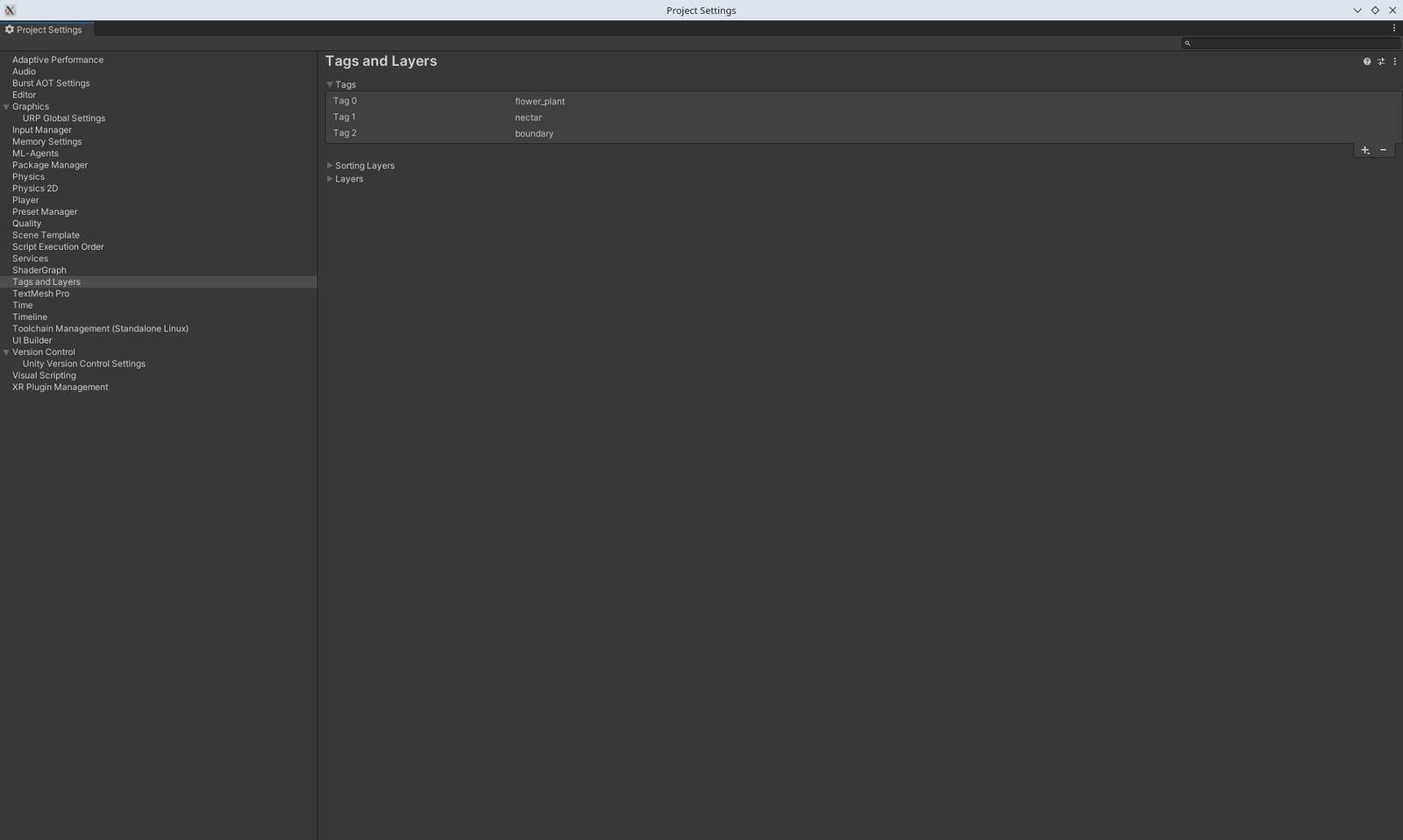
Edit > Project Settings > Tags and Layers > Tags, bouton + : créer
flower_plant, nectar et boundary (en minuscules, exactement).
Les prefabs
| Prefab > objet | Réglage |
|---|---|
| FlowerBud > Flower | Add Component > Flower (notre script) |
| FlowerBud > Flower > FlowerNectarCollider | Tag nectar ; Mesh Collider : Convex coché, Is Trigger coché |
| FlowerPlant | Tag flower_plant (sur la racine du prefab) |
| FloatingIsland | Add Component > FlowerArea |
| FloatingIsland > IslandBoundaries | Tag boundary |
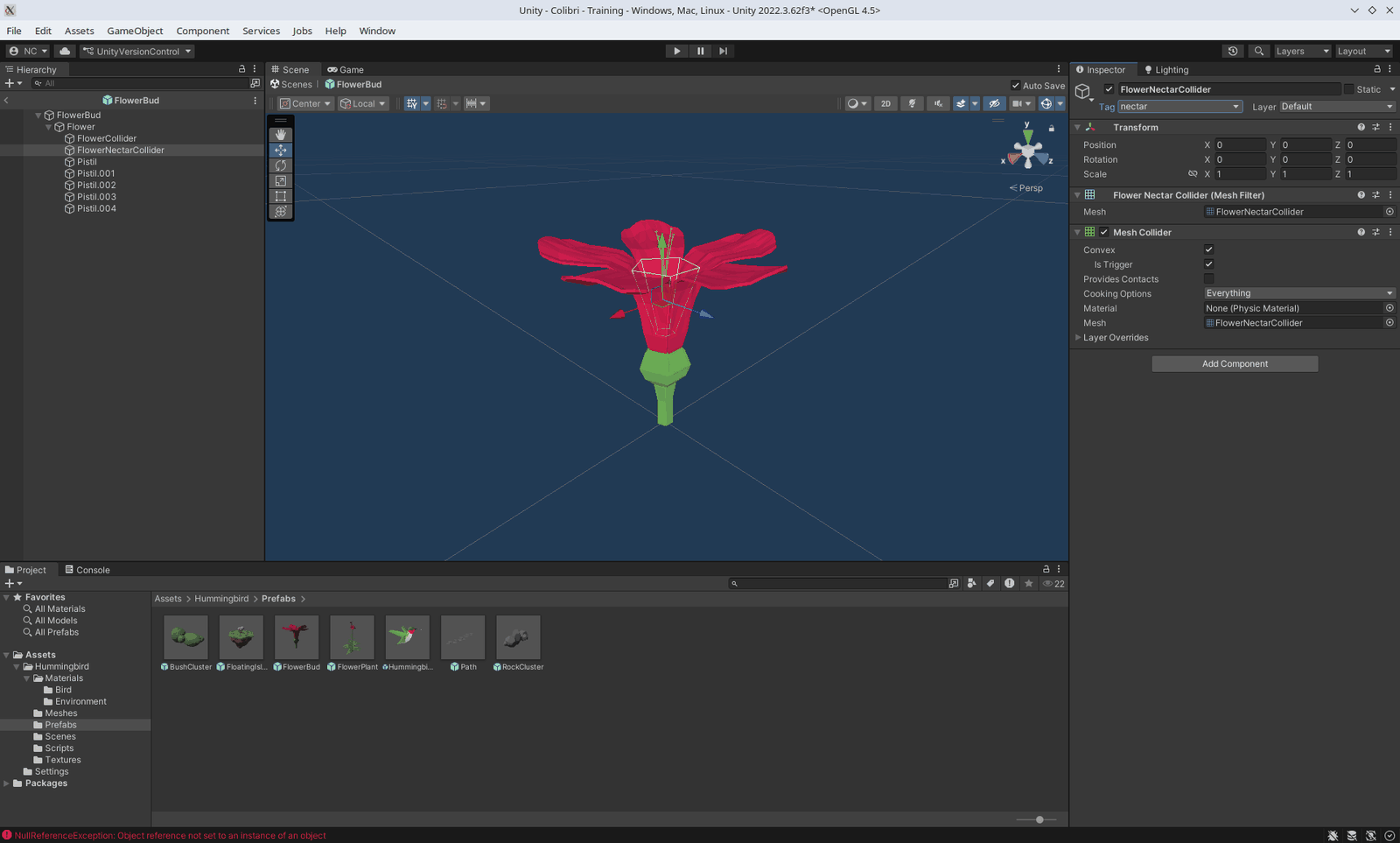
Le colibri (prefab Hummingbird)
| Composant | Valeurs |
|---|---|
| Rigidbody (déjà présent) | Use Gravity décoché, Linear Damping 2 |
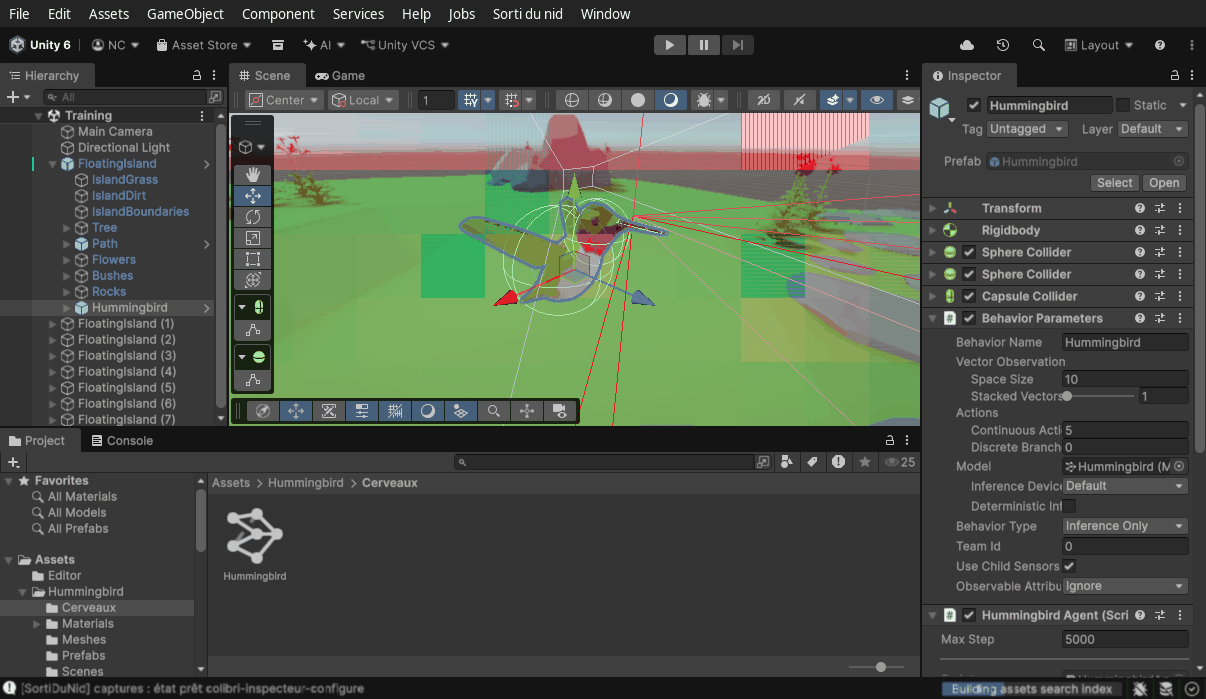
| Hummingbird Agent (notre script) | Max Step 5000 ; Move Force 2, Pitch Speed 100, Yaw Speed 100 ;
Beak Tip = glisser l'enfant BeakTip ; Agent Camera = la caméra ci-dessous ;
Training Mode coché |
| Behavior Parameters (ajouté avec le script) | Behavior Name Hummingbird ; Vector Observation > Space Size
10, Stacked Vectors 1 ; Actions > Continuous Actions 5, Discrete Branches 0 ;
Behavior Type Default ; Use Child Sensors coché |
| Decision Requester | Add Component > Decision Requester : Decision Period 5, Take Actions Between Decisions coché |
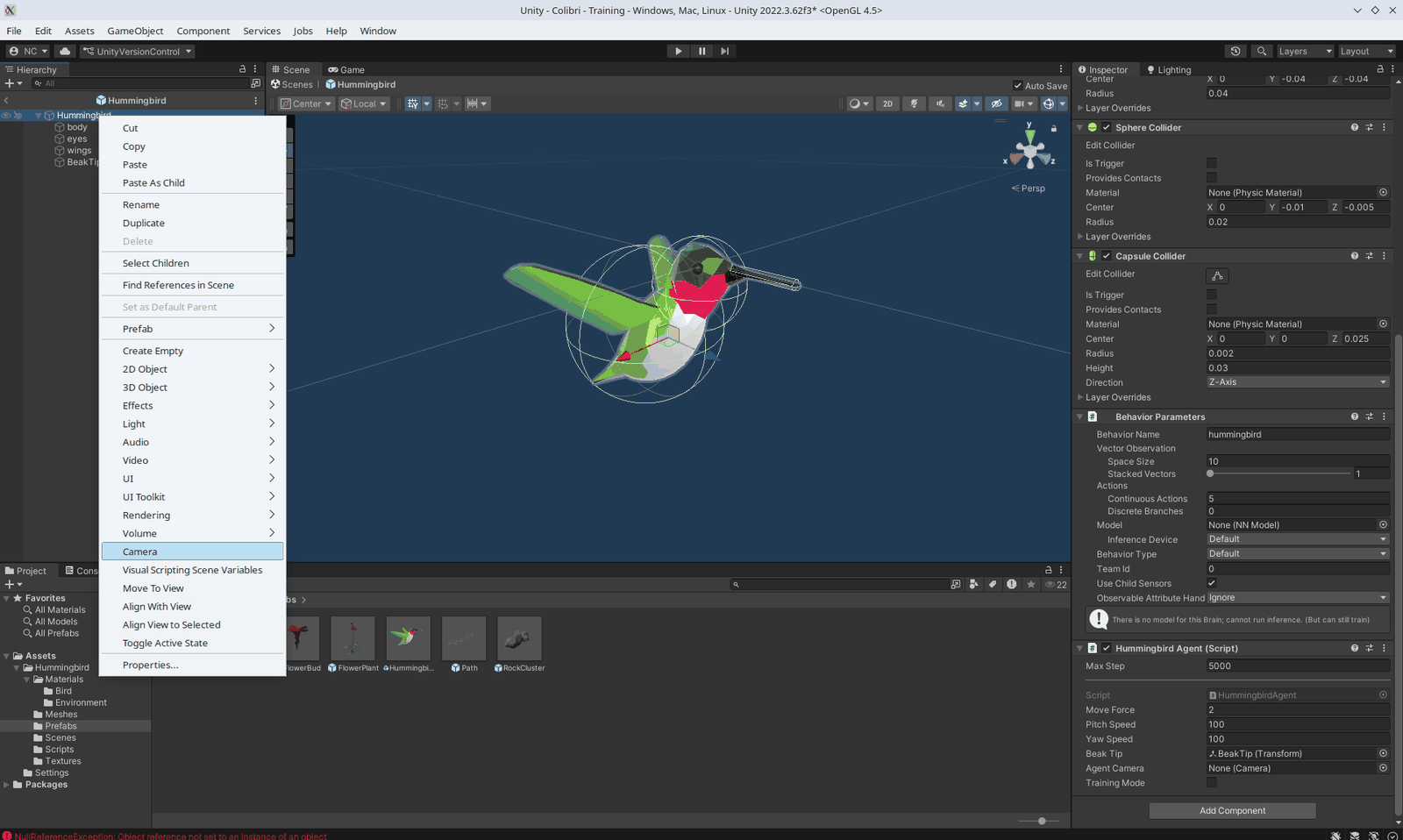
| Camera (nouvel enfant) | Clic droit sur Hummingbird > Camera : Position (0, 0.02, -0.03), Clipping Planes Near 0.01,
supprimer l'Audio Listener, décocher le composant Camera (elle ne sert qu'au mini-jeu) |
Les trois capteurs à rayons
Les dix observations ne disent rien des obstacles. Trois objets vides portant un Ray Perception
Sensor 3D (Add Component) donnent à l'agent des « moustaches » : vers l'avant, vers le haut, vers le bas.
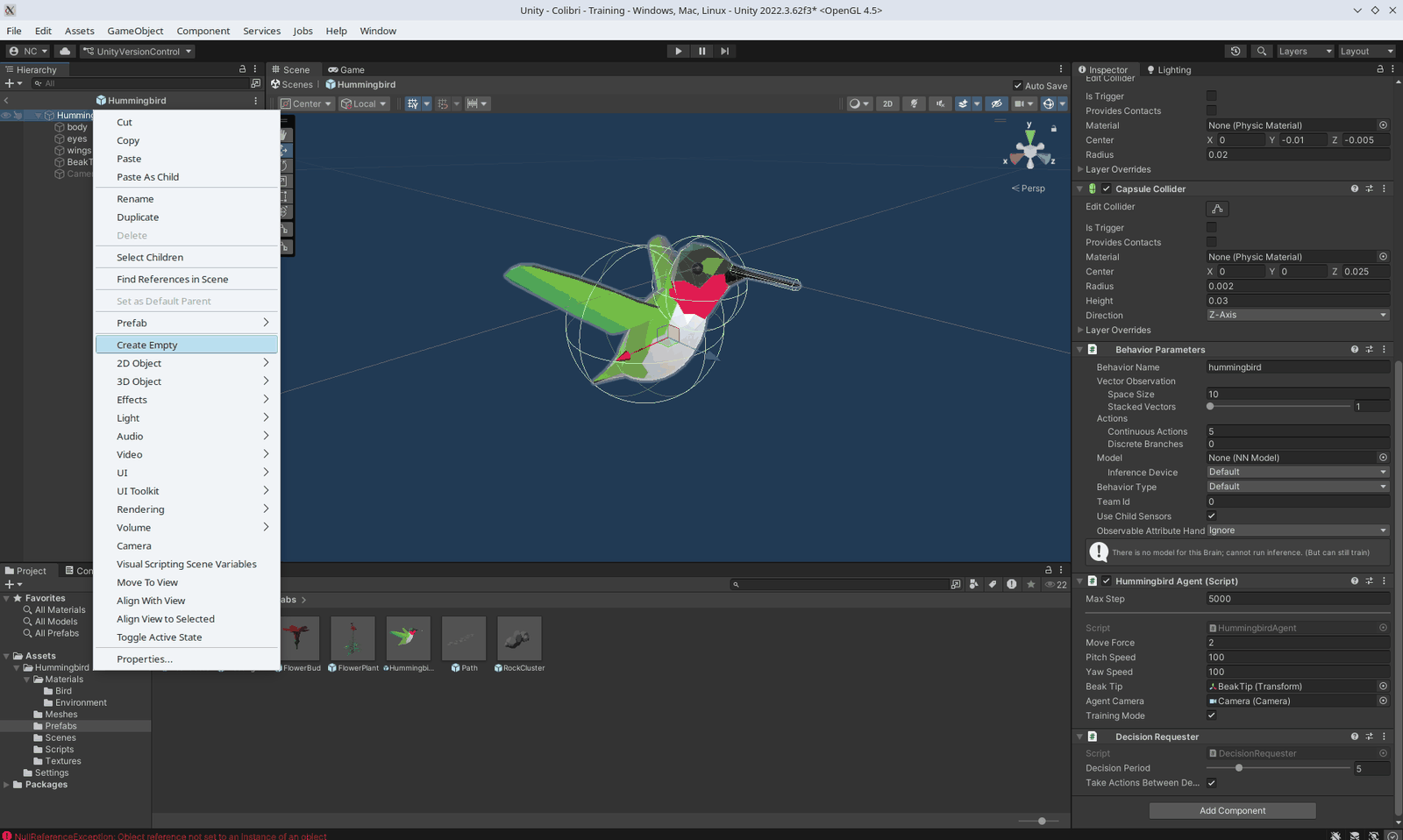
Créer RaysForward (clic droit sur Hummingbird > Create Empty), le configurer, puis le dupliquer
(Ctrl+D) deux fois en changeant le nom, la rotation et le nombre de rayons.
| Objet | Position | Rotation | Sensor Name | Detectable Tags | Rays Per Direction | Max Ray Degrees | Ray Length |
|---|---|---|---|---|---|---|---|
| RaysForward | (0, 0.005, 0.02) | (0, 0, 0) | RaysForward | Untagged, boundary | 3 | 60 | 20 |
| RayUp | (0, 0.005, 0.02) | (-90, 0, 0) | RayUp | Untagged, boundary | 0 | 0 | 20 |
| RayDown | (0, -0.005, 0.02) | (90, 0, 0) | RayDown | Untagged, boundary | 0 | 0 | 20 |
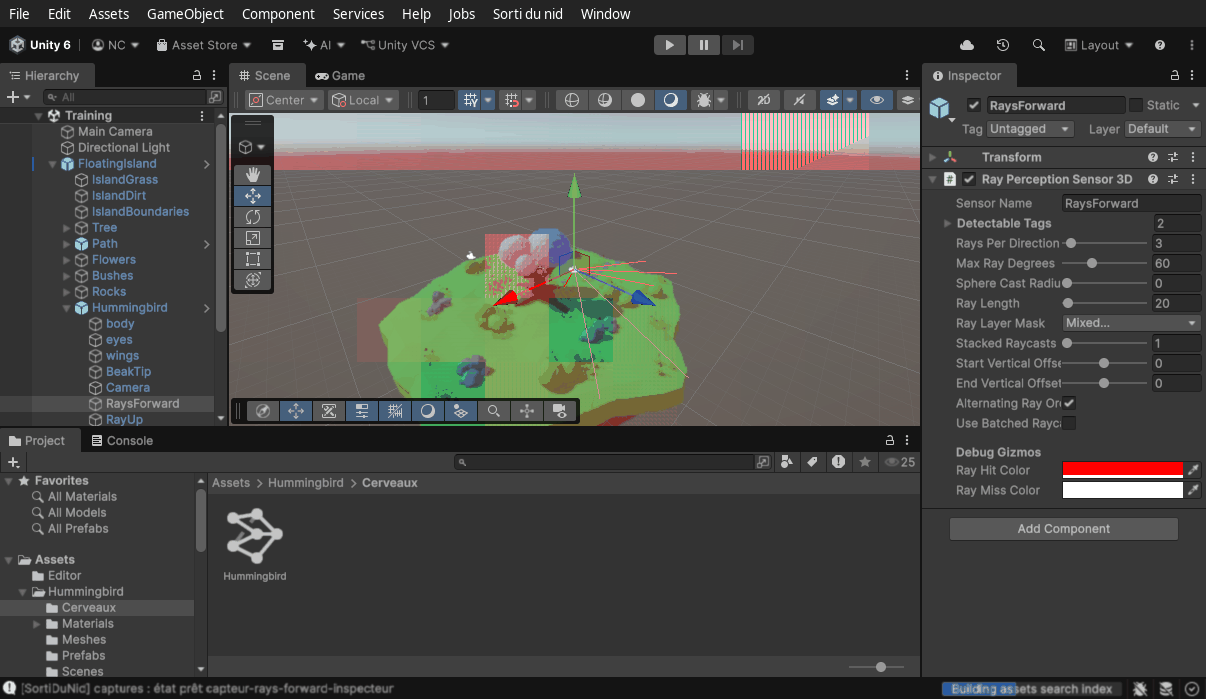
« Untagged » détecte tout ce qui n'a pas de tag (rochers, buissons, arbres). Avec 3 rayons par direction et 60°, RaysForward lance 7 rayons en éventail ; avec 0, RayUp et RayDown n'en lancent qu'un seul.
La scène
Dans la scène Training, l'île FloatingIsland contient déjà un Hummingbird (déplier
l'île dans la hiérarchie pour le voir) : c'est une instance du prefab, elle reçoit automatiquement tout ce que vous
avez configuré dans le prefab. S'il manquait, glisser le prefab depuis le dossier Prefabs sur l'île. Sa position de
départ n'a pas d'importance, OnEpisodeBegin() le replace.
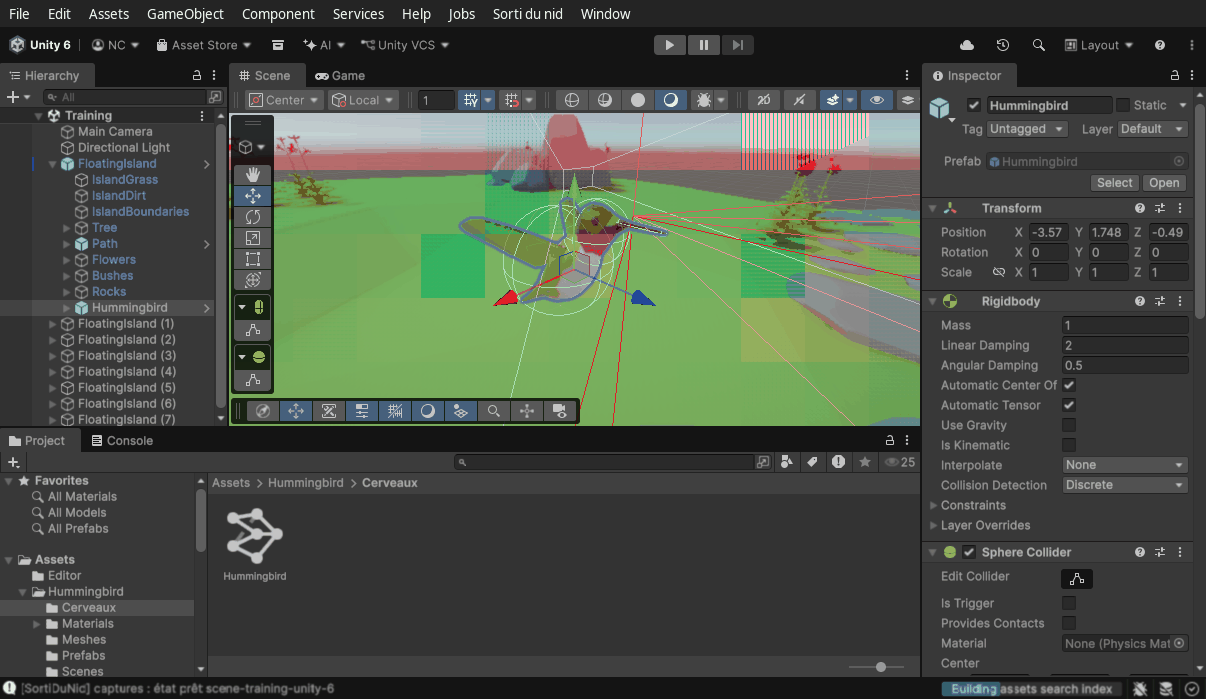
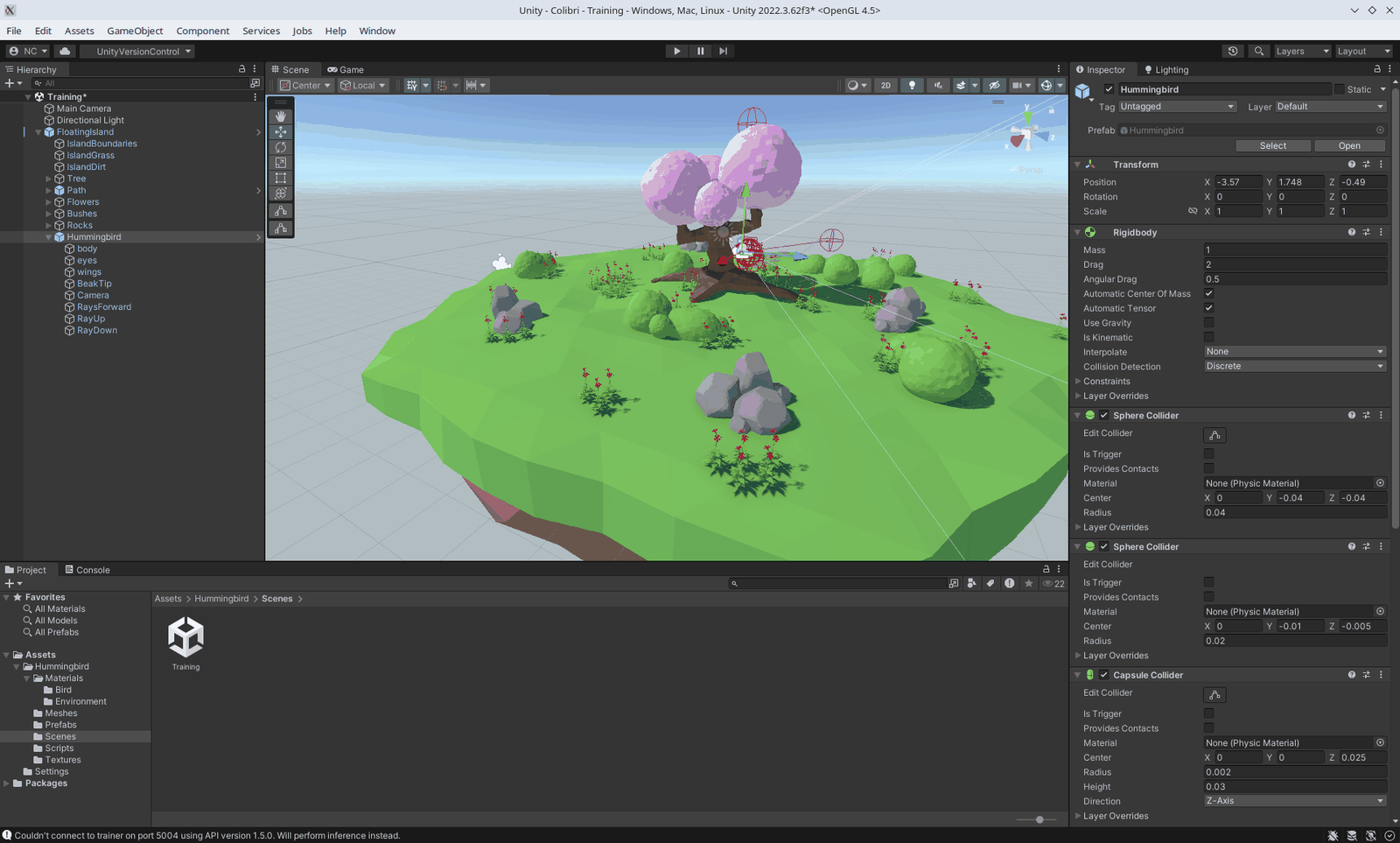
- Les trois tags existent et sont posés (nectar, flower_plant, boundary).
- Flower sur l'objet Flower, FlowerArea sur l'île, HummingbirdAgent + Behavior Parameters + Decision Requester sur l'oiseau.
- Beak Tip et Agent Camera ne sont pas vides dans l'inspecteur de l'agent.
- Trois capteurs, longueur 20, tags Untagged et boundary.
- Space Size 10, Continuous Actions 5, Behavior Name Hummingbird.
8Tester au clavier avant d'entraîner
- Sur le Hummingbird de la scène : Behavior Parameters > Behavior Type = Heuristic Only.
- Play. Dans la vue Scene, une ligne verte relie le bec à la fleur la plus proche.
Attendu : l'oiseau répond aux touches ; quand le bec entre dans une fleur, la fleur passe du rose au violet (vidée) et la ligne verte saute à la fleur suivante. Si rien ne bouge, relire la section 7 (Beak Tip ? Decision Requester ?).
Remettre ensuite Behavior Type = Default : c'est le réglage qui laisse ML-Agents brancher
l'entraîneur Python, ou le cerveau .onnx quand il y en a un.
9Entraîner 2026
Le fichier de configuration
Créer un dossier config à la racine du projet (à côté de Assets, pas dedans) et y
mettre Hummingbird.yaml. Le nom de la section (Hummingbird:) doit être exactement le
Behavior Name de l'agent.
behaviors:
  Hummingbird:
    trainer_type: ppo
    hyperparameters:
      batch_size: 2048
      buffer_size: 20480
      learning_rate: 3.0e-4
      beta: 5.0e-3
      epsilon: 0.2
      lambd: 0.95
      num_epoch: 3
      learning_rate_schedule: linear
    network_settings:
      normalize: false
      hidden_units: 256
      num_layers: 2
      vis_encode_type: simple
    reward_signals:
      extrinsic:
        gamma: 0.99
        strength: 1.0
    time_horizon: 128
    max_steps: 5000000
    summary_freq: 10000
    checkpoint_interval: 500000
    threaded: true
Lancer
# dans le terminal où le venv est activé, à la racine du projet Unity
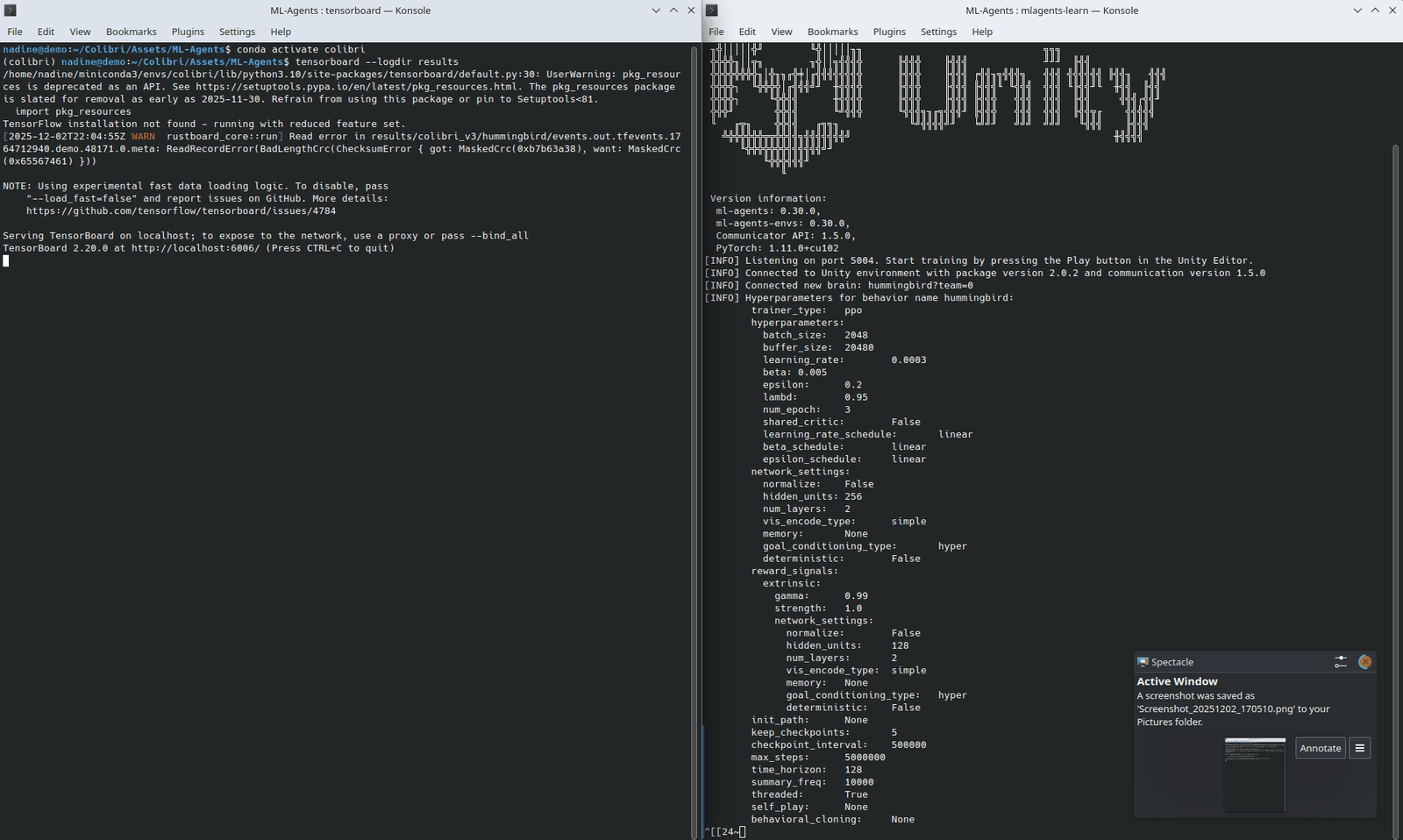
mlagents-learn config/Hummingbird.yaml --run-id=colibri1

# le terminal affiche le logo ML-Agents puis :
# [INFO] Listening on port 5004. Start training by pressing the Play button in the Unity Editor.
Attendu : dès Play, le terminal écrit une ligne toutes les 10 000 pas :
Hummingbird. Step: 10000. Time Elapsed: ... Mean Reward: ... Std of Reward: .... La récompense moyenne
commence près de 0 (ou négative : l'oiseau cogne les limites) et monte au fil des centaines de milliers de pas.
Si vous cliquez Play plus de 60 secondes après le lancement, l'entraîneur abandonne : relancer la commande.
Aller plus vite
- Huit îles : dans la scène, sélectionner
FloatingIsland, Ctrl+D sept fois, et placer les copies en deux rangées de quatre : x = 0, 30, 60, 90 et z = 0 puis 30 (les îles ne doivent pas se toucher). Huit îles = huit oiseaux qui apprennent en même temps avec le même cerveau, l'entraînement va près de huit fois plus vite. - Accélérer le temps :
--time-scale=20sur la ligne de commande (la physique reste exacte, l'affichage saccade : normal). - Reprendre : Ctrl+C dans le terminal arrête et sauvegarde ;
--resumeavec le même--run-idcontinue là où on était.
Lire les courbes
# dans un deuxième terminal (venv activé), à la racine du projet
tensorboard --logdir results
# puis ouvrir http://localhost:6006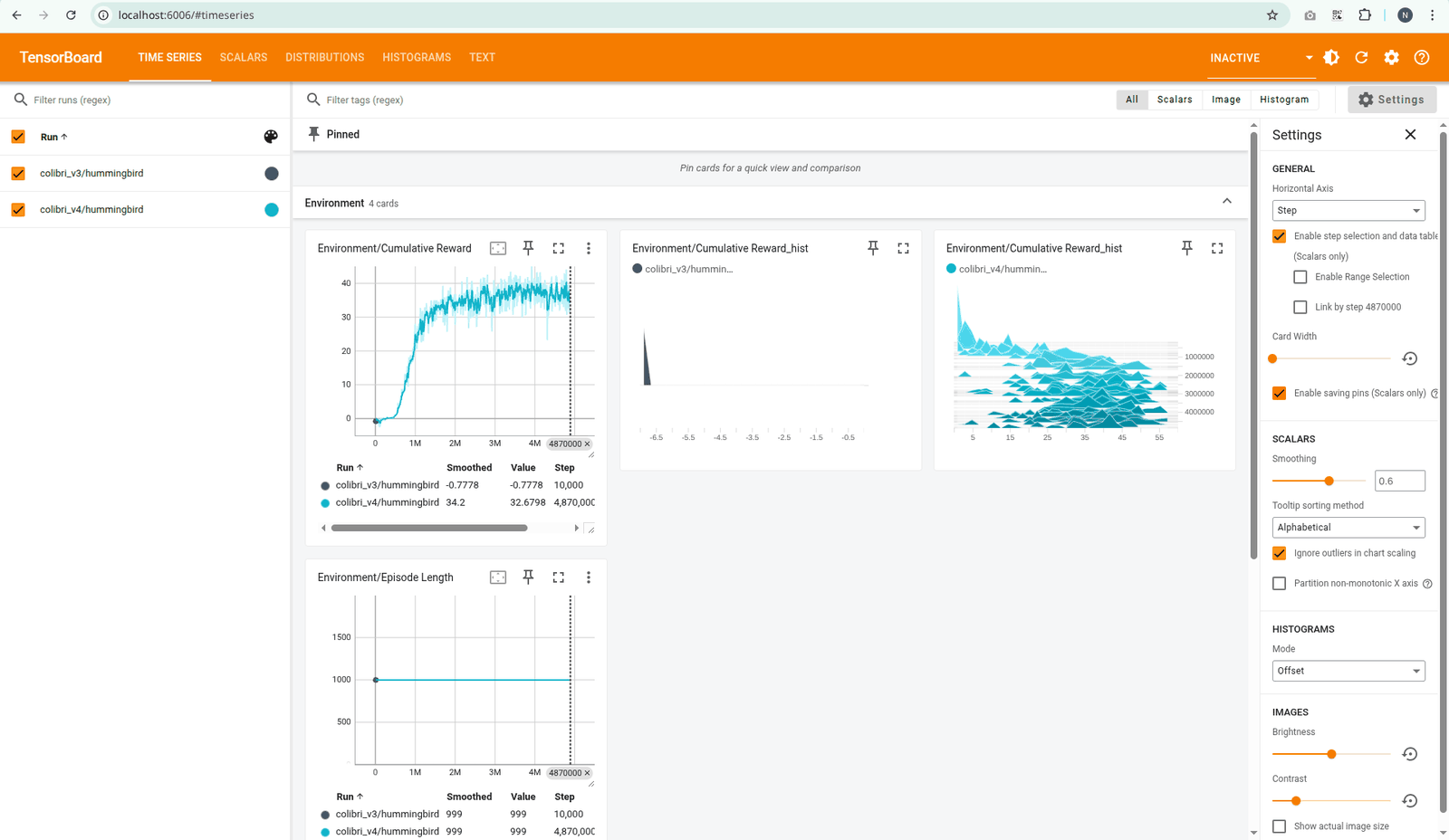
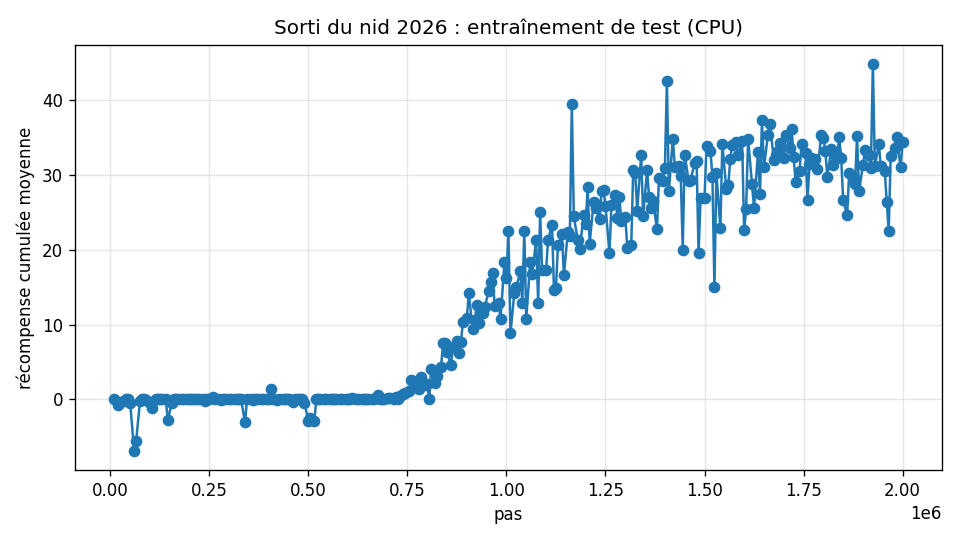
La courbe à regarder : Environment / Cumulative Reward. Elle doit monter, avec des creux. Prenez une capture au début, une au milieu et une à la fin : ce sont les trois captures de la remise. Repères mesurés avec ce guide sur un portable à 4 coeurs : environ 540 pas par seconde avec 8 îles et time-scale 20, donc 1 million de pas en une demi-heure et le plateau (2 millions) en une heure ; les 5 millions du yaml prennent deux heures et demie, et on peut arrêter avant dès que la courbe plafonne.
Le défi du cours : jouer avec le yaml
Une fois un premier cerveau obtenu, la formation propose d'expérimenter les hyperparamètres (documentation
Training Configuration File) :
batch_size et buffer_size (combien d'expériences on accumule avant d'apprendre, les plus
sensibles), num_layers (3 couches au lieu de 2), beta. Un seul changement à la fois, un
nouveau --run-id par essai, et TensorBoard superpose les courbes : vous avez maintenant une base de
comparaison.
10Donner le cerveau à l'oiseau 2026
- Après Ctrl+C, le cerveau est dans
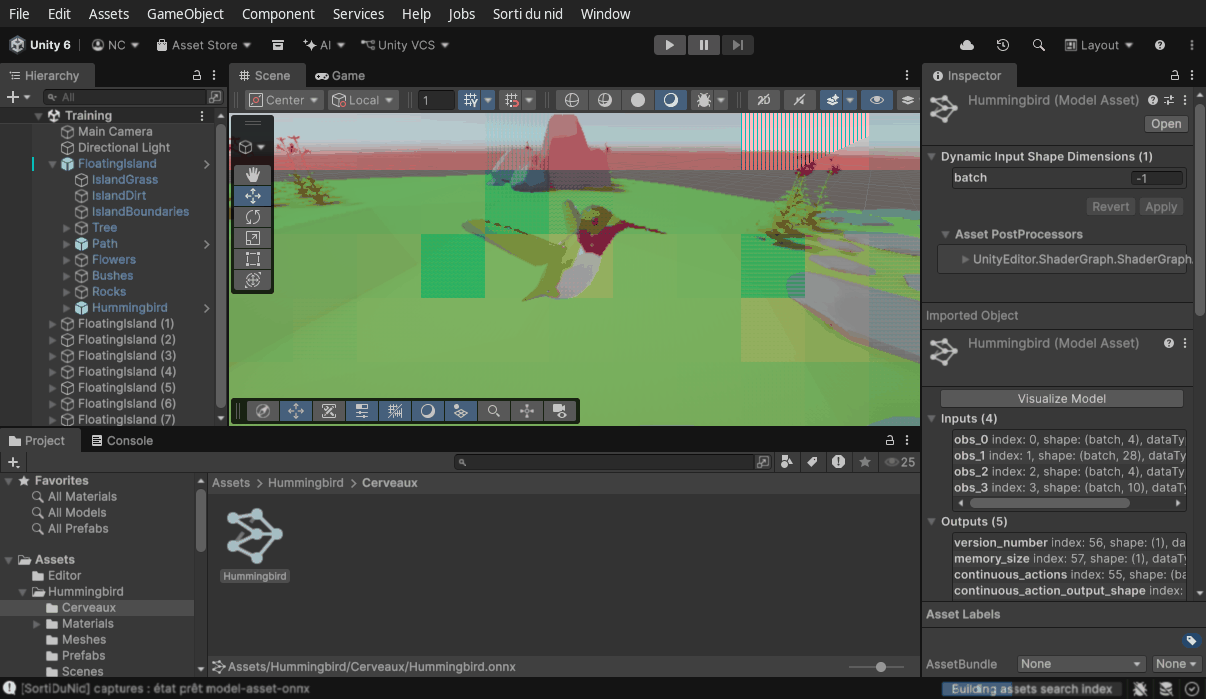
results/colibri1/Hummingbird.onnx. - Le copier dans le projet :
Assets/Hummingbird/Cerveaux/Hummingbird.onnx(créer le dossier). Unity l'importe comme un Model Asset d'Inference Engine. - Sur le prefab Hummingbird : Behavior Parameters > Model = glisser ce fichier ; Behavior Type = Inference Only (ou Default, sans entraîneur lancé).
- Dans la scène, ne garder qu'une seule île active : sélectionner les sept copies et décocher la case à côté de leur nom dans l'inspecteur (ou les supprimer, l'entraînement est fini). Voir le piège ci-dessous.
- Play : l'oiseau vole seul vers les fleurs. Training Mode peut rester coché (les récompenses continuent d'être comptées, c'est sans effet sur le vol) ou être décoché pour un vol sans fin d'épisode.
2026 Piège mesuré avec ML-Agents 4.0.3 : quand huit oiseaux partagent le même cerveau
en inférence, un seul vole correctement et les sept autres restent inertes : l'inférence par lot leur envoie des
actions toutes nulles (mesuré : 0,00 sur les cinq valeurs, pendant que le premier reçoit ses vraies actions). Le cerveau n'y est pour rien : le même fichier .onnx, seul sur son île,
récolte 30 à 45 de récompense par épisode. En inférence, une île suffit ; les huit îles servent à entraîner.
Le cerveau est petit (quelques centaines de ko) : il va dans le dépôt GitHub avec les scripts.
11Remise
Dans votre dépôt GitHub du module Agents (ou un dépôt public à vous, lié dans le README de remise) :
Flower.cs,FlowerArea.cs,HummingbirdAgent.cs, avec un historique de plusieurs commits par script (entre 2 et 5), pas un seul commit « tout ».config/Hummingbird.yaml.- Le cerveau
Hummingbird.onnxproduit par votre entraînement. - Trois captures TensorBoard (début, milieu, fin) de Cumulative Reward.
- Les sections correspondantes du README de remise remplies (liens vers ces fichiers).
Le projet Unity entier (dossiers Library, Temp, Logs) ne va
pas sur GitHub : seulement les fichiers ci-dessus, ou le dossier Assets/Hummingbird/Scripts et
config.
Pour aller plus loin (facultatif) : le mini-jeu de la formation (unité 8, scripts GameManager.cs et
UIController.cs, paquet HummingbirdUI_1.0.zip),
où vous affrontez votre propre cerveau au clavier.
12Dépannage : les erreurs qu'on a vraiment rencontrées
| Symptôme | Cause et remède |
|---|---|
No module named 'pkg_resources' | pip install "setuptools<81" dans le venv (section 1). |
mlagents refuse de s'installer, ou torch introuvable | Python n'est pas en 3.10 : python --version. Recréer le venv avec Python 3.10. |
error CS0115: no suitable method found to override sur OnActionReceived ou Heuristic | Signature de 2020 (float[]). Prendre celle de la classe parente : ActionBuffers (section 6). |
InvalidOperationException: You are trying to read Input using the UnityEngine.Input class... | Le projet est en Input System seul et le code lit l'ancien Input. Utiliser le bloc #if ENABLE_INPUT_SYSTEM de la section 6, ou Project Settings > Player > Active Input Handling = Both. |
| Tout est rose (ou hachuré rose et turquoise) dans la scène | Deux causes. La plus fréquente : Unity 6 compile les shaders pour votre carte graphique et affiche un motif hachuré en attendant ; patienter une ou deux minutes (barre de progression en bas à droite), surtout à la première ouverture. Sinon : le projet n'est pas en URP (modèle « 3D » au lieu de « Universal 3D ») ; recréer le projet avec le bon modèle, ou Window > Rendering > Render Pipeline Converter. |
The Unity environment took too long to respond ou l'entraîneur s'arrête avant Play | Play doit être cliqué dans les 60 secondes. Relancer mlagents-learn, puis Play. |
Couldn't connect to trainer on port 5004 dans la console Unity | Normal quand aucun entraîneur ne tourne : l'agent passe en heuristique ou en inférence. Pour entraîner, lancer mlagents-learn d'abord. |
| Le bec traverse la fleur sans nectar | Default Contact Offset pas à 0.001, ou FlowerNectarCollider pas Convex + Is Trigger, ou tag nectar manquant. |
| La récompense reste négative après 500 000 pas | Les capteurs à rayons ne détectent pas boundary, ou IslandBoundaries n'a pas le tag. Vérifier la section 7. |
| Un lecteur construit (File > Build) sous Linux ne se connecte jamais à l'entraîneur | Le paquet 4.0.3 range libgrpc_csharp_ext.x64.so dans Plugins/AnyCPU/ de la construction ; copier ce fichier dans Plugins/x86_64/ à côté. Dans l'éditeur (bouton Play), le problème n'existe pas. |
| En Inference Only, un seul oiseau vole, les autres ne bougent pas | Inférence par lot de ML-Agents 4.0.3 : un seul agent par cerveau reçoit ses actions. Désactiver les îles supplémentaires (section 10) : le cerveau est bon. |
Le .onnx n'apparaît pas dans le champ Model | Attendre la fin de l'import (barre de progression), vérifier que le fichier est bien dans Assets. |
Retour à l'énoncé du labo Sorti du Nid · assets : ML-Agents: Hummingbirds (Unity Learn, Adam Kelly, 2020) · doc : ML-Agents.